How to connect Acond heat pump with Reduxi controller
Save 30% on costs with Reduxi: connect your Acond heat pump to the Reduxi Controller via Modbus TCP/IP.
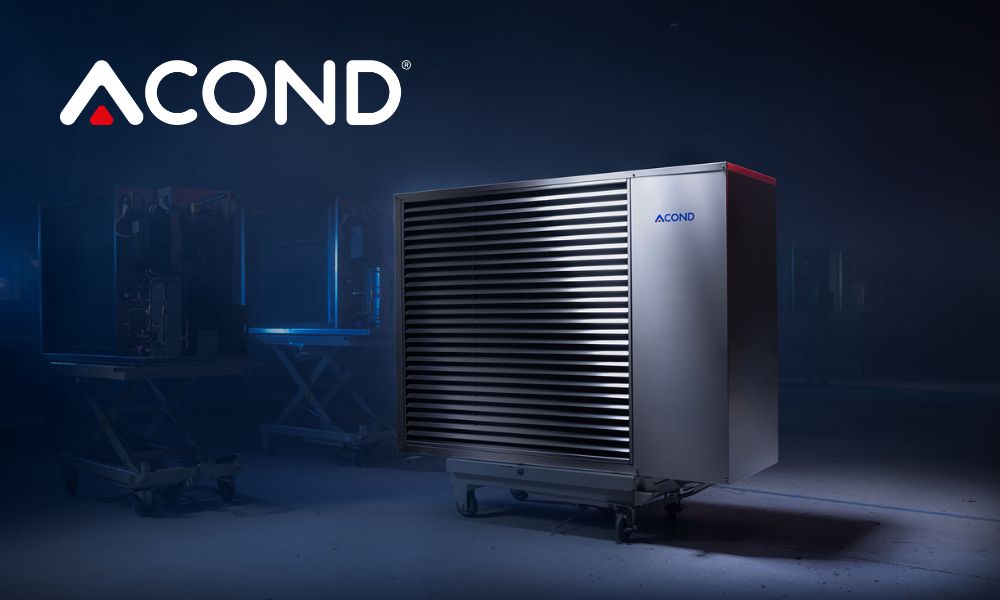
Text description of this image
Promotional photo of an Acond air-to-water heat pump outdoor unit. A grey metal unit with a large louvered grille on the front stands on a base in a dark blue room that looks like a workshop. The white ACOND logo with a red triangle is at the top left of the image and a small ACOND label is on the unit's side panel.
1 Prepare the heat pump
1.1 Activate the Modbus TCP function on the heat pump
An Acond service technician activates the function and performs the necessary firmware update. To schedule an appointment, contact Acond customer service: https://www.acond.com/en#contact-us
1.2 Required components
Two components connect the Reduxi Controller to the Acond heat pump:
- Reduxi Controller
- Ethernet cable
- Laptop or tablet with internet access to configure the device in Reduxi
2 Connect the Reduxi Controller to the heat pump
2.1 Overview of the connection
The picture shows the entire connection from the Reduxi Controller to the heat pump.
Text description of this image
Diagram of the connection between a Reduxi controller and a heat pump. Left: a black box labelled Controller with the reduxi logo on top, a display on its right side and an Ethernet port from which a teal line leaves. Bottom centre: a router icon (black, with Wi-Fi symbol) with no text. Right: a black heat pump icon with a fan, labelled Heat pump. A teal line runs from the controller Ethernet port down to the router and is labelled Ethernet (Modbus TCP). A second teal line runs from the router to the heat pump and is also labelled Ethernet (Modbus TCP).
2.2 Connect the Ethernet cable to the heat pump and the controller
The location of the Ethernet connection varies by model. Refer to your heat pump manual for details.
Connect the Ethernet cable to the heat pump, then connect the other end to your router or a local switch. Do the same with the Reduxi Controller.
3 Log in to the Reduxi web interface
You can open the Reduxi web interface in two ways:
Text description of this image
Screenshot of three Reduxi mobile app screens side by side, with cyan boxes and number badges 2 to 4. Left screen (dashboard, dark theme): menu icon at top left marked with a box and badge 2; 'reduxi' logo; tabs 'Real time data' (active) and 'Statistics'; price 5.79 € and temperature 3.2 °C; energy flow diagram with a house in the centre (-1.25 kW) and icons with values 69.0 W, 1.3 kW, 1.1 kW (red ring), -165.0 W with 97 % (red ring) and 0.0 W values at the bottom; tabs 'Power' and 'Energy'; bottom navigation: Dashboard, Diagnostics, Device control, Settings. Middle screen (side menu): 'reduxi' logo, 'Number of locations: 1233', heading 'Reduxi device management', entries '+ Add Reduxi location' and 'Reduxi devices' (marked with a box and badge 3), then 'My profile' and 'About app'. Right screen (device page): Back; picture of a black Reduxi controller with two Ethernet ports; status 'Connected'; card 'Update available': 'New update is available for your Reduxi device.' with button 'Download and install update'; card 'Connect to configurator': 'Tunnel connection enables remote access to your Reduxi configurator, without need to be connected to the same local network.' with button 'Activate tunnel connection' (marked with a box and badge 4); card 'Unit details' with field 'Unit ID'.
Text description of this image
Screenshot made of two parts side by side. Left part: Reduxi mobile app screen on a dark background. Top: Back button; picture of a black Reduxi controller with two Ethernet ports and a terminal block; status 'Connected' with a Wi-Fi icon. Card 'Update available': 'New update is available for your Reduxi device.' with button 'Download and install update'. Card 'Connect to configurator' with a key icon: 'Tunnel connection enables remote access to your Reduxi configurator, without need to be connected to the same local network.' and button 'Open configurator', marked with a cyan box and number badge 5. Below: card 'Unit details' with a field 'Unit ID' (value not visible). Right part: Reduxi Configurator opened in a browser, marked with a cyan frame and number badge 6. Header: back arrow, 'Tunnel connection', reload icon. Left sidebar with icons (lightning, chip, lightning bolt, bar chart, gear). Page 'Home' with a green link icon. Green notice: 'New patch available. Click here to apply.' with a close X. Time 09:12:56. Energy flow diagram with a house in the centre (1.700 kW) and icons for grid (0.000 kW), solar (1.700 kW), battery (green, 0.000 kW and 0.800 kW), a device at left (0.900 kW), electric vehicle and a charger or device at bottom. Label 'Energy manager' at the bottom.
http://reduxi.local. You can find the controller's IP address in your router's device list or in the Reduxi app under Reduxi devices.admin · Password: admin (factory default)Text description of this image
Screenshot of the Reduxi Configurator login page in a Chrome browser window. The address bar shows 'Not secure' and 'reduxi.local'; the address bar is marked with a cyan box and an enlarged copy of it (cyan box, text 'Not secure reduxi.local') is shown at the left, connected by a cyan line. Page background: light grey line drawing of a house with solar panels (green), a wall box, an inverter, a car and a charger. Top left: 'reduxi configurator' logo. Login box in the centre with title 'Login', a language selector (English flag, 'English'), a username field and a password field, and a dark 'Login' button.
Text description of this image
Screenshot of the Reduxi Configurator web interface after login, light theme. Top left: 'reduxi configurator' logo. Header bar: 'Home' at left, green 'Connected' status at top right. Left sidebar: expanded section 'Devices' with a list of entries, then collapsed sections 'Manager' and 'Configuration' and 'Settings'. Main area: energy flow diagram. House in the centre with ring, value 24.20 kW. Grid icon at top left, 24.20 kW (red dot on its line). Solar icon at top right, value '-'. Left icon (battery or device), 6.700 kW (green dot on its line). Right icons (battery storage and a device), values '-'. EV charger icon at bottom left, 31.00 kW. A further device icon at bottom right. Label 'Energy manager' below the house.
4 Add the heat pump to Reduxi
Use these steps to add a new heat pump or to edit an existing one.
4.1 Basic settings
Log in locally to the Reduxi Configurator on the controller (see Point 3) and press the Add device button.
Text description of this image
Screenshot of the Reduxi Configurator device list. Header: reduxi logo with the text Configurator on a light grey background. Section heading Devices with a minus icon. Device entries in order: Elwe 2 (heat pump icon); Fronius SYMO (sun icon); Schrack NA96 (power pylon icon); Sunways Hybrid Inverter (battery with sun icon); Thor (heat pump icon). Below the last entry is an Add device button with a plus icon, marked with a cyan highlight box. The rest of the image to the right is empty white.
In the first step (basic settings), select the basic parameters of the device:
- Device type:
HVAC - Type:
Acond - Name: a name of your choice, for example Acond Grandis
Text description of this image
Screenshot of the Reduxi Configurator, step 1 of 2 Basic settings. Step indicator: 1 Basic settings (active), 2 Communication channel (grey). Form Basic settings: Device type (required): HVAC; Type (required): Ancond [as shown: Acond]; Name (required): Acond Grandis. Buttons: Back (left), Next (right, dark).
After you have entered everything, press Next.
4.2 Communication settings
Enter the connection details of the heat pump:
| Parameter | Value |
|---|---|
| Connection | TCP/IP |
| IP | The IP address you received from the Acond technician |
| Port | 502 |
| Modbus address | Default 1. The technician also provides this value. |
Text description of this image
Screenshot of the Reduxi Configurator, step 2 of 2 Communication channel. Step indicator: 1 Basic settings, 2 Communication channel (active). Form titled Communication channel and device configuration: Connection (required): TCP/IP; IP (required): empty; Port (required): 502; Modbus address (required): 1. Buttons: Back (left), Test communication and Done (right, dark).
4.3 Test communication
Click Test communication at the lower right, below the communication parameters. It reads the heat pump once and saves nothing. If the test succeeds, click Done: only Done creates the device.
Text description of this image
Screenshot of the bottom button row of a Reduxi Configurator form. Left: button Back. Right: button "Test communication" marked with a blue box, and a dark button Next to its right.
The test returns one of two results:
Text description of this image
Screenshot of a Test communication dialog in the Reduxi Configurator with a close X at top right. Green text in a white box: Successful readout from device. Active power: -38491 W; Export active energy: 159710470 Wh; Max. active power: 0 W; Min. active power: -110000 W; PV current: 17.38 A; PV voltage: 376.075 V; Voltage L1: 226.9 V; Voltage L2: 231.1 V; Voltage L3: 229.1 V. Dark button Close at bottom right.
Text description of this image
Screenshot of a dialog titled Test communication (close x at the top right). First box: Unable to communicate with device. Second box (red text): Unable to communicate with 192.168.1.206 on port 502. Check if service is enabled on device, port number is correct and device is reachable on the network. PING 192.168.1.206 (192.168.1.206) 56(84) bytes of data. --- 192.168.1.206 ping statistics --- 2 packets transmitted, 0 received, 100% packet loss, time 1062ms. Dark button at the bottom right: Close.
5 Check the readings
5.1 Last measurements
After communication is established, check the values under Devices – Acond Heat Pump in the Reduxi Configurator as an additional test.
Text description of this image
Screenshot of the Reduxi Configurator Last measurements page for a device. Tabs: Last measurements (active), Analyze, Archive. Top right: refresh interval dropdown (Each second) and a refresh icon. Card Control type: buttons Auto (highlighted, teal) and Manual (dark), with a small date and time stamp. Card Current: Current L1 0.03 A; Current L2 0.06 A; Current L3 0.03 A. Card Voltage: Voltage L1 234.96 V; Voltage L2 237.69 V; Voltage L3 238.45 V. Card Power: Active power 0.0 kW; Export active power 0.0 kW; Import active power 0.0 kW. Card Energy: Export active energy 0.0 kWh; Import active energy 1.6 kWh. Card Other: Communication error OFF; Control type AUTO; Relay state ON; State name setpoint (no value shown). Each value has a small date and time stamp.
5.2 Enable control by Reduxi
For advanced heat pump control, integrate the device into the Reduxi strategy. Under Devices – Acond Heat Pump in the Reduxi Configurator, set the control type to AUTO. Only then do strategy commands affect the heat pump.
To achieve maximum flexibility and energy cost reduction with dynamic prices and dynamic tariffs, define a strategy as described in Strategies for Reduxi controller.
After you add the device and check the values, you can also inspect and control it in the Reduxi application.
✓ Summary
Preparation (Points 1–2): An Acond technician activates Modbus TCP and gives you the IP address. Connect the heat pump and the controller to the router or switch with Ethernet cables.
Log in (Point 3): Open the Reduxi Configurator via the app or a web browser.
Add to Reduxi (Point 4): Add the device as HVAC / Acond with TCP/IP, the technician's IP address, port 502 and Modbus address 1 (default). Confirm with Test communication, then Done.
Go live (Point 5): Check the last measurements and set the control type to AUTO.
→ Common issues
| Issue | Solution |
|---|---|
| Test communication fails | Check the IP address from the Acond technician, port 502 and the Modbus address (default 1, confirm with the technician). Check that the technician has activated the Modbus TCP function and that both Ethernet cables are connected to the router or switch. |
| Open configurator does not open or stays empty | The tunnel is not active yet. Wait about 30 seconds and check that the controller is online. |
Login with admin is rejected |
The password was changed during installation. Ask the installer. The Reduxi account password does not work here. |
reduxi.local does not load |
Your device is not in the same network as the controller. Use the IP address or the tunnel connection. |
| Communication test fails, device shows offline | Check reachability, IP address / port / unit ID, and that the protocol is enabled on the device. |