How to connect Nibe heat pump with Reduxi Gateway
Connect Nibe heat pumps to the Reduxi Gateway through the SG-ready contacts and save up to 30% on energy costs: dynamic control aligns the heat pump with fluctuating energy prices.
Text description of this image
Photo of a tall freestanding indoor heat pump module on a white background. Light grey and silver cabinet with a darker front-left edge, a black plinth at the bottom and a small dark logo mark at the top left of the front. No readable text.
1 Prepare the connection
1.1 Technical documentation
Documentation of the Nibe S-Series heat pumps:
- Nibe VVM S320: product page – Product information and document downloads (Swedish)
- Nibe VVM S320: user manual (PDF) – User manual (Användarhandbok)
- Nibe VVM S320: datasheet (PDF) – Datasheet (Produktblad)
1.2 Required components
Two Reduxi components connect the Reduxi Controller to the Nibe heat pump:
- Reduxi Controller
- Reduxi Gateway device with 3x (30:1A) current sensors (CTs)
- UTP cable, only for the wired connection (LAN) of the gateway
- Laptop or tablet with internet access to configure the device in Reduxi
First add the Reduxi Gateway device to the Reduxi Controller. The gateway then controls the operating modes of the heat pump. The connection is wireless (WLAN) or wired via a UTP cable (LAN). More about this: Gateway to Controller connection.
The gateway measures the current of each phase of the heat pump with the 3x (30:1A) current sensors. Its two relay outputs send the signals to the SG-ready contacts and set the operating mode of the heat pump.
2 Connect the Reduxi Gateway and the heat pump
2.1 Connection scheme of the Reduxi devices and Nibe
The physical connection between the Reduxi Gateway and Nibe has two steps:
- Connect the relays of the Reduxi Gateway to the Nibe SG-ready contacts (Point 2.2).
- Connect the current sensors (CT) of the Reduxi Gateway to the phases L1, L2 and L3 (Point 2.3).
Text description of this image
Connection scheme on a white background. Top left: black Reduxi box labelled Controller with a network port and a green terminal. Top centre/right: a black icon of an outdoor heat pump unit with a fan, labelled Heat pump, with an SG Ready logo box at its left. Middle: a router icon with Wi-Fi symbol. Right middle: a grey Reduxi box labelled Gateway with current clamps and coloured wires. Lines in turquoise: Controller to router labelled Ethernet (Modbus TCP); router to Gateway labelled Ethernet (Modbus TCP) with the note Wireless or wired; Gateway to the SG Ready box (line goes up and left to the heat pump side); a vertical line from the heat pump down to the Gateway labelled L1, L2, L3; a line from the Gateway current clamps to a turquoise box labelled Heat pump power supply.
2.2 Connect the gateway relays to the Nibe SG-ready contacts
First find the SG-ready contacts on the circuit board of the heat pump. Use the user manual of your specific Nibe device.
The picture shows how to connect the SG-ready contacts to the Reduxi Gateway.
Text description of this image
Wiring diagram. Top right: two green circuit boards, each with a grey screw terminal block with three labelled positions: upper board DIG 1, COM, DIG 2; lower board DIG 1, COM, DIG 2. From each board a black wire and a red wire run down and to the left to the relay terminals of the gateway at the bottom. Bottom: the gateway's terminal strip drawn from above with arrows pointing up from each terminal. Labels from left: CT (current transformer socket, marked by a square), then three relay groups, each with the terminals NC, COM, NO, with plug blocks labelled RELE 3, RELE 2, RELE 1 below. The wires end at terminals in the RELE 2 and RELE 1 groups (these labels are shown in bold). The outline of the gateway housing is at the very bottom.
| Reduxi Gateway relay contact | Nibe heat pump contact |
|---|---|
| Relay 1, NO contact (Smart Grid Ready 1) | DIG 1 |
| Relay 1, COM contact | COM contact that belongs to relay 1 on the heat pump |
| Relay 2, NO contact (Smart Grid Ready 2) | DIG 2 |
| Relay 2, COM contact | COM contact that belongs to relay 2 on the heat pump |
2.3 Connect the current sensors
The current sensors measure the current of the heat pump. They provide the real-time power consumption of the heat pump. The voltage comes from the Reduxi Controller. If it is not available, the default voltage of 230 V is used.
The current sensors (CTs) are included in the Reduxi Gateway kit.
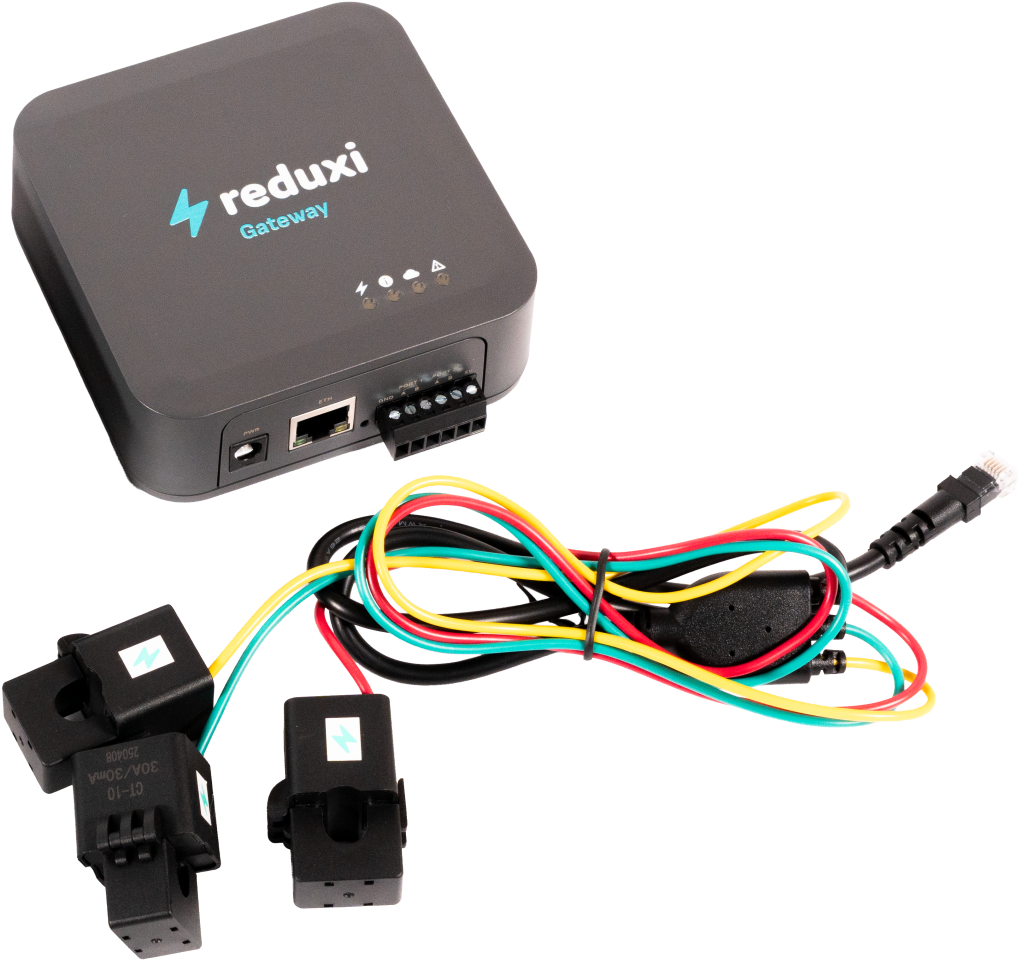
Text description of this image
Photo of the Reduxi Gateway with current sensors on a white background. Top: a dark grey square device with the reduxi logo (lightning bolt and the word reduxi) and the word Gateway in blue on the front; four small indicator lights on the top; on the front edge a round power socket, an RJ45 network port and a 6-pin screw terminal block. Below it: three black clamp-on current transformers (split-core sensors), each with a small blue-white logo label; one sensor has small printed text. Thin cables in red, green, yellow and black run from the sensors, are bundled together with a cable tie and end in a small black connector at the top right.
Each current sensor covers one phase wire (L1, L2, L3) of the heat pump:
Text description of this image
Photo looking into an open blue metal cabinet. Three blue split-core current sensors are stacked at the left, each placed around a conductor. Around them are many cables: white, grey, blue, yellow-green and black wires, blue network cable, an orange wire connector in the middle and a terminal strip at the lower right. Floor tiles are visible at the lower left. No text or markings are legible.
3 Log in to the Reduxi web interface
You can open the Reduxi web interface in two ways:
Text description of this image
Screenshot of three Reduxi mobile app screens side by side, with cyan boxes and number badges 2 to 4. Left screen (dashboard, dark theme): menu icon at top left marked with a box and badge 2; 'reduxi' logo; tabs 'Real time data' (active) and 'Statistics'; price 5.79 € and temperature 3.2 °C; energy flow diagram with a house in the centre (-1.25 kW) and icons with values 69.0 W, 1.3 kW, 1.1 kW (red ring), -165.0 W with 97 % (red ring) and 0.0 W values at the bottom; tabs 'Power' and 'Energy'; bottom navigation: Dashboard, Diagnostics, Device control, Settings. Middle screen (side menu): 'reduxi' logo, 'Number of locations: 1233', heading 'Reduxi device management', entries '+ Add Reduxi location' and 'Reduxi devices' (marked with a box and badge 3), then 'My profile' and 'About app'. Right screen (device page): Back; picture of a black Reduxi controller with two Ethernet ports; status 'Connected'; card 'Update available': 'New update is available for your Reduxi device.' with button 'Download and install update'; card 'Connect to configurator': 'Tunnel connection enables remote access to your Reduxi configurator, without need to be connected to the same local network.' with button 'Activate tunnel connection' (marked with a box and badge 4); card 'Unit details' with field 'Unit ID'.
Text description of this image
Screenshot made of two parts side by side. Left part: Reduxi mobile app screen on a dark background. Top: Back button; picture of a black Reduxi controller with two Ethernet ports and a terminal block; status 'Connected' with a Wi-Fi icon. Card 'Update available': 'New update is available for your Reduxi device.' with button 'Download and install update'. Card 'Connect to configurator' with a key icon: 'Tunnel connection enables remote access to your Reduxi configurator, without need to be connected to the same local network.' and button 'Open configurator', marked with a cyan box and number badge 5. Below: card 'Unit details' with a field 'Unit ID' (value not visible). Right part: Reduxi Configurator opened in a browser, marked with a cyan frame and number badge 6. Header: back arrow, 'Tunnel connection', reload icon. Left sidebar with icons (lightning, chip, lightning bolt, bar chart, gear). Page 'Home' with a green link icon. Green notice: 'New patch available. Click here to apply.' with a close X. Time 09:12:56. Energy flow diagram with a house in the centre (1.700 kW) and icons for grid (0.000 kW), solar (1.700 kW), battery (green, 0.000 kW and 0.800 kW), a device at left (0.900 kW), electric vehicle and a charger or device at bottom. Label 'Energy manager' at the bottom.
http://reduxi.local. You can find the controller's IP address in your router's device list or in the Reduxi app under Reduxi devices.admin · Password: admin (factory default)Text description of this image
Screenshot of the Reduxi Configurator login page in a Chrome browser window. The address bar shows 'Not secure' and 'reduxi.local'; the address bar is marked with a cyan box and an enlarged copy of it (cyan box, text 'Not secure reduxi.local') is shown at the left, connected by a cyan line. Page background: light grey line drawing of a house with solar panels (green), a wall box, an inverter, a car and a charger. Top left: 'reduxi configurator' logo. Login box in the centre with title 'Login', a language selector (English flag, 'English'), a username field and a password field, and a dark 'Login' button.
Text description of this image
Screenshot of the Reduxi Configurator web interface after login, light theme. Top left: 'reduxi configurator' logo. Header bar: 'Home' at left, green 'Connected' status at top right. Left sidebar: expanded section 'Devices' with a list of entries, then collapsed sections 'Manager' and 'Configuration' and 'Settings'. Main area: energy flow diagram. House in the centre with ring, value 24.20 kW. Grid icon at top left, 24.20 kW (red dot on its line). Solar icon at top right, value '-'. Left icon (battery or device), 6.700 kW (green dot on its line). Right icons (battery storage and a device), values '-'. EV charger icon at bottom left, 31.00 kW. A further device icon at bottom right. Label 'Energy manager' below the house.
4 Add the heat pump to Reduxi
Use these steps to add a new heat pump or to edit an existing one.
4.1 Basic settings
Log in locally to the Reduxi Configurator on the controller (see Point 3) and press the Add device button.
Text description of this image
Screenshot of the left sidebar of the Reduxi Configurator. Top: reduxi logo with the text CONFIGURATOR. Collapsed sections: Devices (plus icon) and Strategies (plus icon). Below, two buttons side by side: Add device (plus icon, marked with a blue highlight box) and Add strategy (plus icon). Below them two entries: Settings and Profile. The area to the right of the sidebar is empty white.
In the first step (basic settings), select the basic parameters of the device:
- Device type:
HVAC - Type:
Reduxi Meter - Name: a name according to the model, for example Nibe S320
Text description of this image
Screenshot of the Reduxi Configurator wizard, step 1 Basic settings (step 2 is Communication channel, greyed). Heading: Basic settings. Fields: Device type *: HVAC (dropdown); Type *: Reduxi Meter (dropdown); Name *: Nibe followed by a model code that reads S320. Buttons: Back (left), Next (right, dark).
After you have entered everything, press Next.
4.2 Communication settings
The communication settings have three parts:
- Communication channel
- Current sensor settings (CTs)
- Definition of the relay signals in relation to the SG-ready contacts
Part 1: communication channel. Connection type TCP/IP, IP address of the Reduxi Gateway, Modbus port and Modbus unit ID. These settings are predefined. Leave them as they are. If the connection fails, click Scan for IP to find the IP address of the Reduxi Gateway.
Text description of this image
Screenshot of the Reduxi Configurator wizard, step 2 Communication channel (step 1 is Basic settings), upper part. Heading: Communication channel and device configuration. Fields: Connection *: TCP/IP (dropdown); IP *: gateway.local, with a dark button Scan for IP at the right; Port *: 502, with a dark button Test port at the right; Modbus unit ID *: 1.
Part 2: current sensors. Select Autodetect from Gateway.
Text description of this image
Screenshot of three dropdown fields from the Reduxi Configurator communication channel settings (part 2). CT- L1: Auto detect from gateway (hint: Current transformer). CT- L2: Auto detect from gateway (hint: Current transformer). CT- L3: Auto detect from gateway (hint: Current transformer).
Part 3: relay signals. The table shows the operating modes of the heat pump:
| Reduxi operating mode | Nibe operating mode | Smart Grid Ready 1 | Smart Grid Ready 2 |
|---|---|---|---|
| OFF | Forced OFF | on (closed) | off (open) |
| ECO | Normal operation | off (open) | off (open) |
| ON | Enhanced comfort | off (open) | on (closed) |
| BOOST | Forced ON | on (closed) | on (closed) |
Configure the relay signals in the Reduxi Configurator as follows.
Forced OFF mode (OFF in Reduxi)
Text description of this image
Screenshot of three dropdown fields from the Reduxi Configurator communication settings. Off - relay 1: On (hint: Setpoint of the relay 1 when heat pump setpoint is off). Off - relay 2: Off (hint: Setpoint of the relay 2 when heat pump setpoint is off). Off - relay 3: Not in use (hint: Setpoint of the relay 3 when heat pump setpoint is off); this field has a green highlighted border.
Normal operation mode (ECO in Reduxi)
Text description of this image
Screenshot of three dropdown fields from the Reduxi Configurator communication settings. ECO - relay 1: Off (hint: Setpoint of the relay 1 when heat pump setpoint is ECO). ECO - relay 2: Off (hint: Setpoint of the relay 2 when heat pump setpoint is ECO). ECO - relay 3: Not in use (hint: Setpoint of the relay 3 when heat pump setpoint is ECO).
Enhanced Comfort mode (ON in Reduxi)
Text description of this image
Screenshot of three dropdown fields from the Reduxi Configurator communication settings. ON - relay 1: Off (hint: Setpoint of the relay 1 when heat pump setpoint is ON). ON - relay 2: On (hint: Setpoint of the relay 2 when heat pump setpoint is ON). ON - relay 3: Not in use (hint: Setpoint of the relay 3 when heat pump setpoint is ON).
Forced ON mode (BOOST in Reduxi)
Text description of this image
Screenshot of three dropdown fields from the Reduxi Configurator communication settings. BOOST - relay 1: On (hint: Setpoint of the relay 1 when heat pump setpoint is BOOST). BOOST - relay 2: On (hint: Setpoint of the relay 2 when heat pump setpoint is BOOST). BOOST - relay 3: Not in use (hint: Setpoint of the relay 3 when heat pump setpoint is BOOST).
4.3 Test communication
Click Test communication at the lower right, below the communication parameters. It reads the device once and saves nothing. If the test succeeds, click Done: only Done creates the device.
Text description of this image
Screenshot of the bottom button row of a Reduxi Configurator form. Left: button Back. Right: button "Test communication" marked with a blue box, and a dark button Next to its right.
The test returns one of two results:
Text description of this image
Screenshot of a Slovenian-language dialog titled "Test komunikacije" [Communication test] with a close button (x) at top right. Green text: "Successful readout from device". Values: Active power: 28392 W; Current L1: 45.329 A; Current L2: 45.329 A; Current L3: 45.329 A; Import active energy: 0 Wh; Relay 1 state: false; Relay 2 state: false; Voltage L1: 231.0 V; Voltage L2: 232.0 V; Voltage L3: 233.0 V; Additional parameter - POWER_ACTIVE_L1: 9423; Additional parameter - POWER_ACTIVE_L2: 9464; Additional parameter - POWER_ACTIVE_L3: 9505. Button at bottom right: "Zapri" [Close].
Text description of this image
Screenshot of a dialog titled Test communication (close x at the top right). First box: Unable to communicate with device. Second box (red text): Unable to communicate with 192.168.1.206 on port 502. Check if service is enabled on device, port number is correct and device is reachable on the network. PING 192.168.1.206 (192.168.1.206) 56(84) bytes of data. --- 192.168.1.206 ping statistics --- 2 packets transmitted, 0 received, 100% packet loss, time 1062ms. Dark button at the bottom right: Close.
5 Check the readings
5.1 Last measurements
After communication is established, check the values under Devices – Nibe heat pump in the Reduxi Configurator as an additional test.
Text description of this image
Screenshot of the Reduxi device page for a heat pump, Last measurements tab (tabs: Last measurements, Analysis, Archive; a dropdown and refresh icon at top right). Top tiles: "Control type" with buttons Auto (dark) and Manual (highlighted teal, selected); a second tile with a row of four small buttons, one highlighted teal (labels small: Off.). Card "Current": three values 0.55, 0.57, 0.59 (phase labels and units small). Card "Power": three values 0.4, 0.0, 0.4. Card "Energy": one value 78.7. Card "Other": rows with values OFF, MANUAL, OFF, OFF, ON. Card "Settings": Voltage values 246.00, 244.40, 246.30. Each value has a small timestamp.
5.2 Enable control by Reduxi
For advanced heat pump control, integrate the device into the Reduxi system strategy. Under Devices – Nibe in the Reduxi Configurator, set the control type to AUTO. Only then do strategy commands affect the heat pump.
To achieve maximum flexibility and energy cost reduction with dynamic prices and dynamic tariffs, define a strategy as described in Strategies for Reduxi controller.
After you add the device and check the values, you can also inspect and control it in the Reduxi application.
✓ Summary
Preparation (Point 1): Open the Nibe documentation. Get the Reduxi Controller and the Reduxi Gateway with 3 current sensors.
Nibe heat pump (Point 2): Connect the gateway relays to the contacts DIG 1 and DIG 2 with their COM contacts. Mount the current sensors on the phases L1, L2 and L3.
Add to Reduxi (Points 3–4): Log in to the Reduxi web interface. Add the device with type Reduxi Meter, set the relay signals and test the communication.
Go live (Point 5): Check the last measurements. Set the control type to AUTO and define a strategy.
→ Common issues
| Issue | Solution |
|---|---|
| Heat pump does not change its mode | Check the wiring of relay 1 to DIG 1 and relay 2 to DIG 2, each with its COM contact (see Point 2.2). Check the relay states of the mode (see Point 4.2). Check that the control type is AUTO (see Point 5.2). |
| Power readings are missing or wrong | Check that each current sensor covers one phase wire L1, L2 or L3 (see Point 2.3). Check that Autodetect from Gateway is selected (see Point 4.2). |
| Gateway not found in the communication settings | Click Scan for IP in the communication settings (see Point 4.2). Add the Reduxi Gateway to the Reduxi Controller first, wirelessly (WLAN) or via UTP cable (LAN). |
| Open configurator does not open or stays empty | The tunnel is not active yet. Wait about 30 seconds and check that the controller is online. |
Login with admin is rejected |
The password was changed during installation. Ask the installer. The Reduxi account password does not work here. |
reduxi.local does not load |
Your device is not in the same network as the controller. Use the IP address or the tunnel connection. |
| Communication test fails, device shows offline | Check reachability, IP address / port / unit ID, and that the protocol is enabled on the device. |